
Why does a portal URL that loads channels perfectly on one box return "Portal error" on another?
A household drops cable, buys a set-top box, types in the address exactly as the provider sent it, and still gets a blank screen while a friend's nearly identical line works fine. Trials add to the confusion, because a stream can look flawless at 2 p.m. and stutter through a Saturday night hockey game. The address itself is only a door. What sits behind it depends on whether that URL came from your provider with your account attached, or from an unverified source handing the same string out to anyone who asks.
Pasting is the easy part. What decides whether you watch anything is the format your device accepts, the device identifier registered against it, the bandwidth and data allowance your household has, and how many streams your plan permits at once. Each of those can be checked and tested during a trial period, before you touch an existing subscription or disturb a setup that already works. One honest limit runs through all of it: a URL on its own can never confirm the service behind it has the right to carry the channels it lists.
Table of Contents
- What an IPTV Portal URL Is and Where It Is Used
- Setup Formats and Compatible Devices
- Household Bandwidth and Reported Data Use
- Data Allowances and Simultaneous Device Limits
- How to Enter a Portal URL Step by Step
- Protecting Your Login Details From Unverified Portals
- Fixing Common Portal URL Errors
- Check Your Setup During the Free Trial
What an IPTV Portal URL Is and Where It Is Used
An IPTV portal URL is the address a provider hands your device so the device can pull down its channel list, program guide and on-demand library. It isn't a website you browse. A set-top box or player app connects to that address, identifies itself, and receives the content catalogue in return.
Picture a household in Mississauga that drops a cable package and buys a MAG box. Nobody types in channels. The box boots, reads the portal address stored in its settings, sends its device identifier, and the provider's server decides what that box is allowed to see.
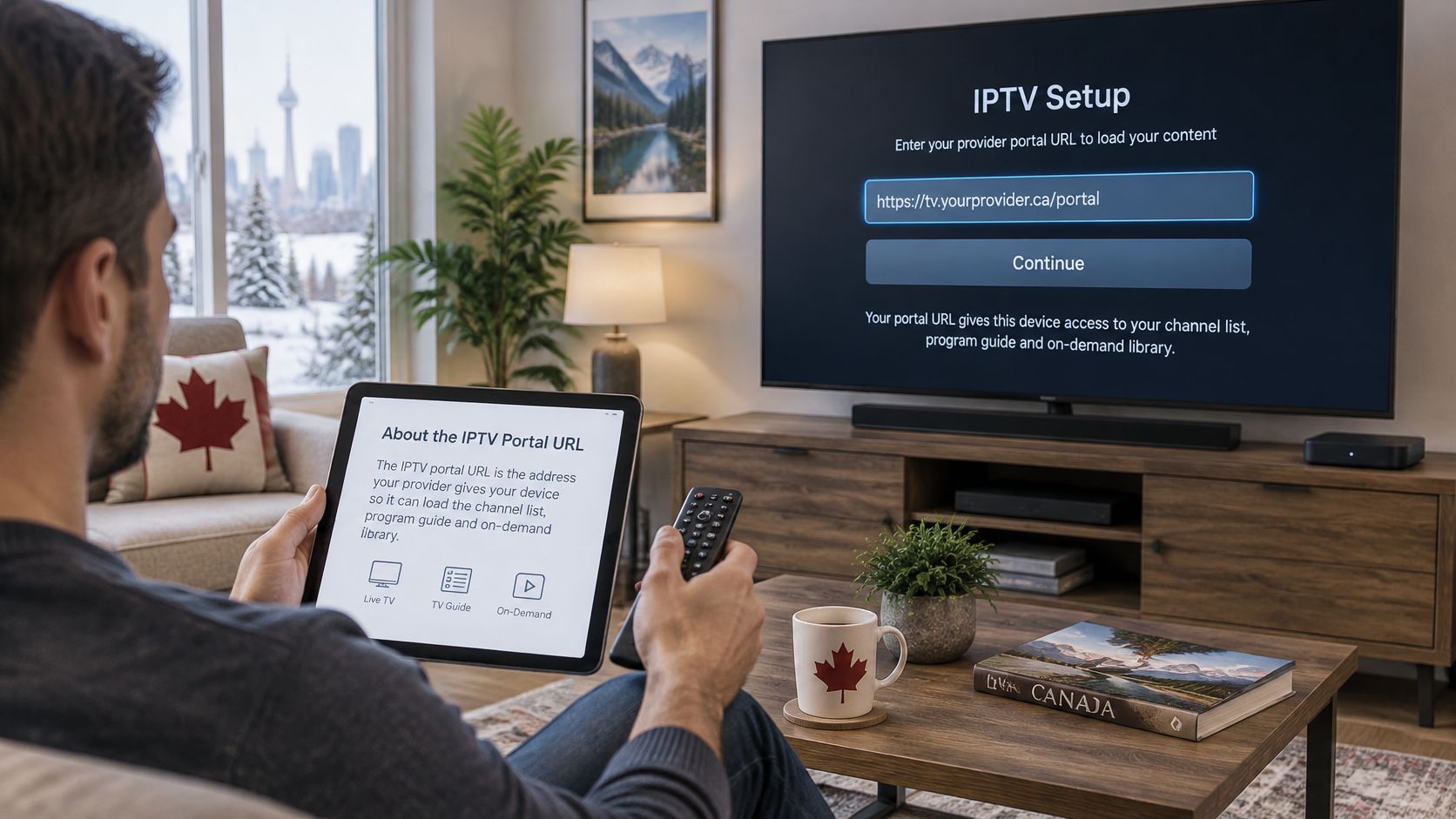
Devices that use one include MAG and similar set-top boxes, Formuler boxes, and IPTV player apps on Android TV, Fire TV, phones, tablets and laptops. Because the address is paired with a login or a device identifier, the same URL behaves differently for two subscribers.
Canada's regulator treats IPTV as an established category. The CRTC communications monitoring report counted IPTV services at 26% of all broadcasting-distribution subscribers in 2018, defining them as managed television delivered over Internet Protocol networks, naming Bell Fibe and TELUS Optik TV, and separating them from internet video platforms such as Netflix, Crave and Club Illico. A third-party portal address is a different animal: it's a login endpoint, and its legitimacy rests on who issued it, not on how the address is formatted.
You now know what the address does. The next question is which of four setup formats you're holding.
Setup Formats and Compatible Devices
Four formats cover almost every device on the market, and each one asks for different information. Match the format to your hardware before you buy anything.
| Format | What You Enter | Typical Devices | Credentials Needed |
|---|---|---|---|
| Portal URL | Portal address and device MAC address | MAG and similar set-top boxes | Portal address plus MAC registration |
| M3U playlist | Playlist link or file | IPTV player apps on Android, Windows and TV boxes | Playlist link, sometimes with a username and password inside it |
| Xtream Codes | Server address, username and password | Apps that support Xtream login | Server address, username and password |
| Provider app login | Account sign-in inside the app | Smart TV apps, phones and tablets | Account username and password |
Portal URL with a MAC address
MAG boxes and Formuler receivers take a portal address in their own settings menu, alongside a device identifier. There's no app to install. You send the MAC address to the provider first, wait for registration, then enter the address. The box does the rest.
M3U playlists
A playlist link or file loads into a player app on Android TV, Windows or a TV box. Our walkthrough of the IPTV M3U playlist format for Canadian users covers how the link is structured and where it goes. Playlists carry the channel list, so the app draws the guide.
Xtream Codes and app logins
Xtream Codes details arrive as separate fields, server address, username and password, and suit apps built for that login. Provider app logins work differently again: you sign in inside the app on a Smart TV, phone or tablet, and the app handles the connection.
Identify your format from the welcome email. One subscription can support more than one, and the email usually lists account details, a playlist link and server fields side by side. Pick the format your device supports, not the one a forum post mentioned.
Practical rule: never place credentials from one format into the field for another. A playlist link pasted into a portal address field produces a silent failure that reads exactly like a wrong password.
Then check the hardware. Android TV boxes and Fire TV sticks run player apps, Smart TVs use a built-in app or a store-installed player, and phones and tablets use their app stores. Confirm the model number against the provider's supported-device list before you buy a box, because an older unit may cap you at Full HD no matter how fast your line is.
Household Bandwidth and Reported Data Use
Resolution claims are cheap. Data use is measurable, and the CRTC has published per-hour estimates for Canadian streaming services.
| Service | Reported Data Use | Notes |
|---|---|---|
| CBC TV | 0.24 to 0.89 GB per hour | CRTC service estimate |
| Global TV | 1.13 to 1.22 GB per hour | CRTC service estimate |
| CraveTV | 1.95 to 2.20 GB per hour | CRTC service estimate |
| Netflix | 0.35 to 2.86 GB per hour | Higher at high bitrate |
| YouTube | 0.73 to 4.82 GB per hour | Range set by resolution |
| 4K streaming | Up to 5 GB per hour | CRTC general figure |
| Live IPTV channel | Set by the provider and resolution | No CRTC figure published |
Those numbers come from the CRTC's retail internet performance and data-use reporting, which notes video services can consume as much as 5 GB per hour for 4K streaming. An evening of 4K viewing is a data decision as much as a picture-quality decision.
Line speed is the other half. The CRTC sets the Canadian universal-service target at 50 Mbps download and 10 Mbps upload, and by the end of 2021, 91.4% of Canadian households had access to services meeting those speeds, according to the CRTC's internet service questions page. Households below 50/10 Mbps may need to reduce concurrent streams or drop video quality; faster lines leave more room for IPTV multiple devices.
Working out what your line can carry before you buy is covered in our guide to IPTV internet speed requirements, which pairs those targets with realistic household scenarios.
Do the arithmetic on streams running at the same time, not devices sitting in the house. Three streams plus a work video call on a line under 50/10 Mbps is a recipe for buffering, so drop one stream to a lower quality before you blame the provider. If concurrent streams regularly exceed what your line delivers at peak hours, change your settings, then your habits, then your plan.
Data Allowances and Simultaneous Device Limits
Two limits decide whether a subscription works in a full house: the monthly data allowance and the number of streams allowed at once. Neither appears in a channel count.
Canadian usage climbed fast enough to matter. The CRTC's 2021 telecommunications monitoring report recorded average monthly combined download and upload use of 385.7 GB in 2020, up from 263.6 GB in 2019, with download use alone rising from 243.9 GB to 353.4 GB, a 44.9% year-over-year increase. A household running live sports plus several HD and 4K streams together reaches those totals quickly.

Ask your internet provider whether the plan is unlimited and whether the allowance covers streaming traffic. Then confirm the connection limit, because an extra device can fail on a perfect line. A 1 Month IPTV Subscription Canada – 2 Devices plan is one example of a tiered approach, with two devices streaming at once. Plans here run from a single device up to five, so a household with different viewing habits can size the subscription to the number of screens in use.
Be careful with resolution promises. 8K IPTV claims aren't verified anywhere in this guide, and 4K IPTV Canada marketing should be tested on your own line before you commit to a long term. Write the stream limit and the data allowance beside the setup email, so nobody has to guess later why the third screen froze.
How to Enter a Portal URL Step by Step
Setup follows five stages: choose a subscription plan, receive your login credentials, install an IPTV player app, enter the details, and start streaming. Portal-based devices skip the app stage, since the box connects directly.
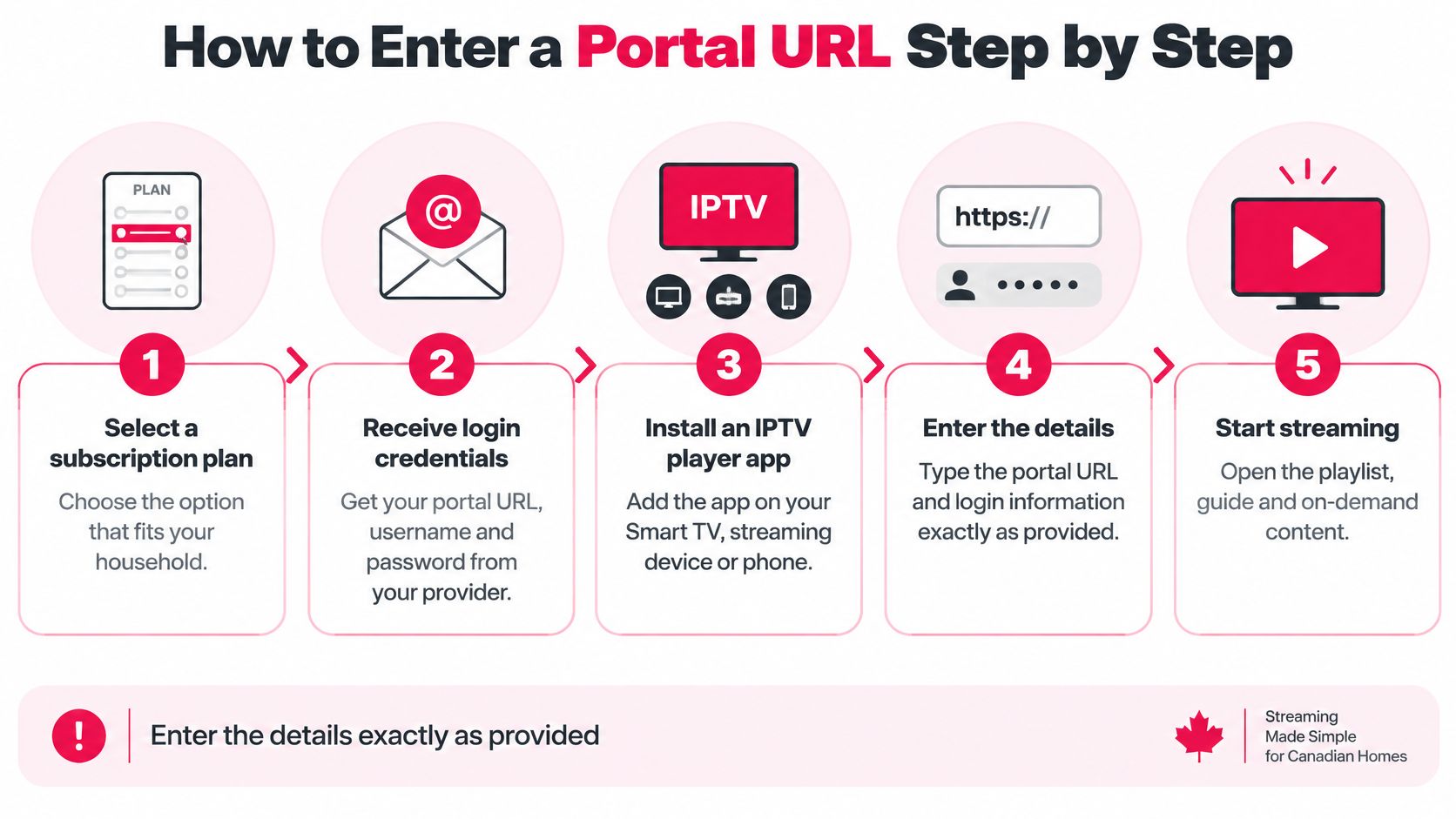
- Subscribe and keep the confirmation email. It holds the portal address and credentials, and you'll need them again after a firmware update or a device swap. Screenshot it into a folder you can find.
- Find the device's MAC address. It's printed on the sticker underneath a MAG box and also shown in the system or about screen. Send it to the provider if registration is required, and read it carefully: MAC addresses use only 0 to 9 and A to F, so a letter O or I means you're reading something else.
- Open the portal or server settings and type the address exactly as supplied. Keep the http or https prefix and any trailing path characters. One mistyped character causes a silent failure, and the screen won't tell you which character it was.
- Enter any username or password issued to you, then trim stray spaces. A space copied at the start or end of a field is invisible and still breaks the login.
- Save, restart the device once, and wait for the list to load. A restart clears a cached failed login, which is often the cause behind a second attempt that "should" work.
- Test one live channel and one on-demand title before a trial ends. A guide that fills in but a channel that never starts tells you something different from a guide that never loads at all.
A short walkthrough of the same flow is worth watching once before you start typing on a remote:
A working setup looks unremarkable. Channels fall into categories, the program guide populates with times that match your province, and a channel starts playing within a few seconds of selection. If any one of those three is missing, you're debugging a specific stage, not starting over.
Protecting Your Login Details From Unverified Portals
Anyone holding your portal address and login can use them. That's the whole risk in one sentence, and it's why an unverified URL is a different problem from a slow stream: it can collect personal details, resell access, or disappear with your payment.
Most leaked logins are talked out of people rather than cracked, and this Digital Footprint Check social engineering awareness guide explains the persuasion patterns to recognise. Four rules cover the practical side.
Buy only from the provider's own website or a verified reseller, and never send payment to a personal account or an unknown operator on a messaging app. Never reuse a password from your email, banking or social accounts, because a breach at one service becomes a breach everywhere. Skip unknown APK files and player apps linked from forums or social feeds, since sideloaded installers are the usual delivery method for credential theft. And read the plan terms before paying, including refund and trial policy.
Removing credentials from a shared device takes three steps: clear the portal or playlist field, sign out of the player app, and change the password if the device is sold or handed on.
Keep the technical question separate from the legal one. A working setup says nothing about whether a service holds the rights to the channels it carries, so stick to services offering channels and titles you're entitled to watch in Canada, and treat any IPTV provider Canada listing that dodges that point as a warning.
Before subscribing, ask for four things: a named business, a support contact you can reach, a clear trial or refund policy, and a supported-device list. Our own IPTV account security and login safety guide covers password hygiene and device removal in more depth.
Fixing Common Portal URL Errors
Most failures fall into five patterns, and each has a first fix you can try in minutes.
| Symptom | Likely Cause | Fix |
|---|---|---|
| Cannot load portal | Mistyped address or wrong format | Recheck spelling, http or https and format from the provider |
| Authentication failed | Expired subscription or MAC not registered | Confirm account status with the provider and re-enter the MAC |
| Channels buffer at peak hours | Congested Wi-Fi or shared bandwidth | Test on a wired connection and at off-peak hours |
| One device stops when another starts | Simultaneous-connection limit | Check the device limit on your plan |
| All devices fail | Provider outage or DNS problem | Wait, then test on another network or DNS setting |
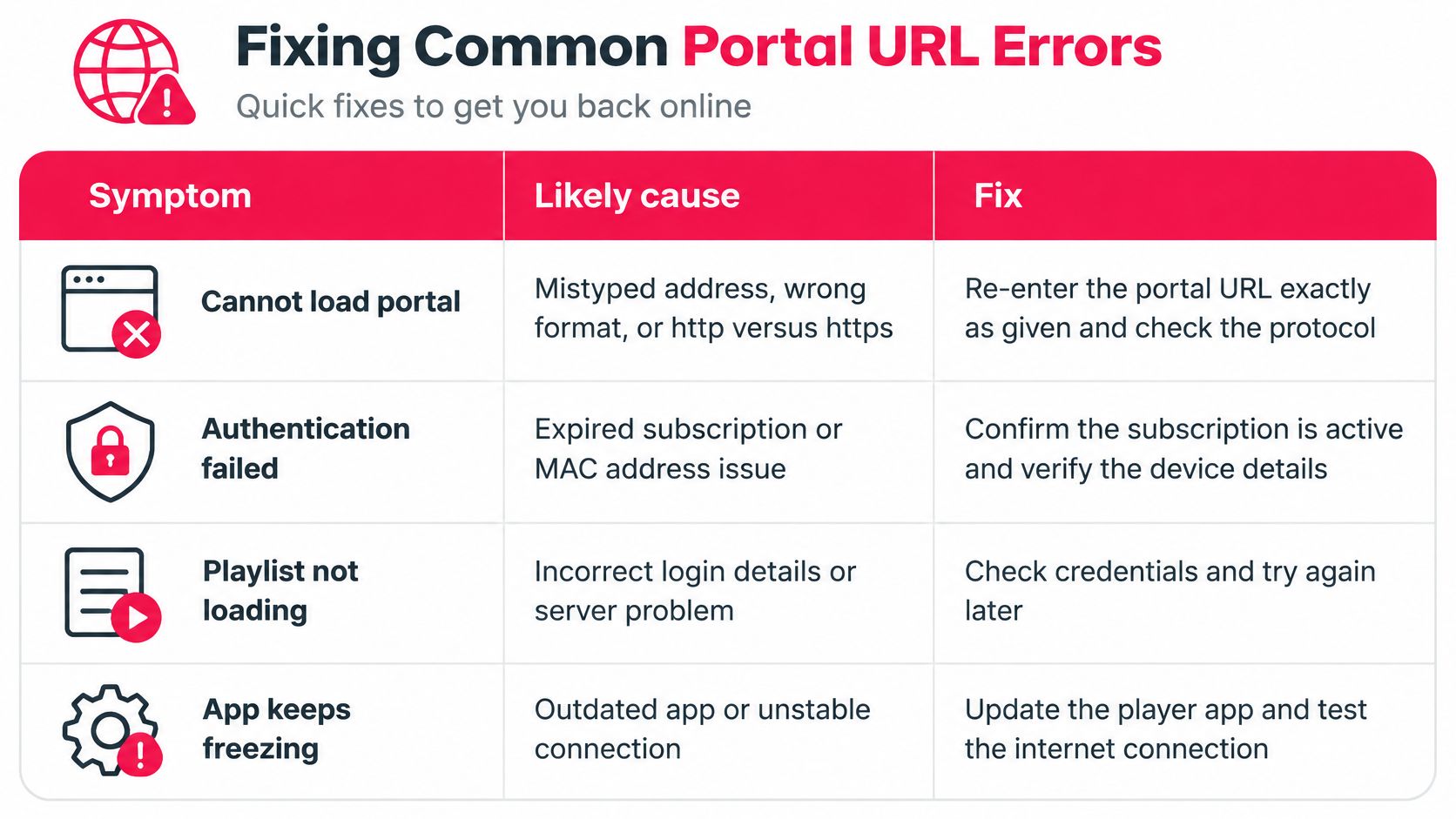
Work in this order, because the first steps catch setup errors while the later ones separate your home network from the provider's.
- Restart the device and the router, router first. Stale network state and cached failed logins clear on a full power cycle, not on standby.
- Compare the address and credentials against the provider's email, character by character. This catches the majority of "cannot load portal" and "authentication failed" reports.
- Switch to Ethernet and test a single channel. Wired playback isolates Wi-Fi congestion from a genuine service problem, especially during evening peaks.
- Try another network or a different DNS setting. If your internet provider's default resolver is filtering or failing on the portal domain, a public resolver often settles it; the Finchum Fixes IT explanation of what DNS is and how it works is a useful primer if the term is new to you.
- Contact the provider with the device model, the exact error text and the time of failure. That combination lets support check your account and the server at the same moment, instead of guessing.
If the address is right, the account is active and the message still says the URL is invalid, our fix for the IPTV setup invalid URL error in Canada walks through the remaining causes. In most households the fault sits in the home network or an expired login, not in the address itself.
Check Your Setup During the Free Trial
Subscribe on evidence, not on a channel count. A trial that runs on your own television, your own router and your own viewing hours answers every question a sales page can't.
A trial is a test of your household, not a preview of a catalogue. Test the boring things at the times you actually watch.
- Confirm your device is on the supported list and that the format matches it, portal for a MAG or Formuler box, playlist or Xtream fields for a player app.
- Test one live channel and one on-demand title during the trial window, ideally a live sports event in the evening rather than a quiet afternoon.
- Compare playback against your bandwidth and data checks, and note whether the second and third streams hold up when the household is busy.
- Check activation timing before you rely on it for an event. ROVE IPTV activation is typically completed shortly after subscription, so it's worth confirming the timeline when you order.
- Store the setup email and credentials somewhere secure, and note the stream limit and data allowance alongside them.
If you're new to running a software trial properly, this guide to running a software trial from KeenVerdict covers how to structure the test period and record what you find. ROVEIPTV.CA is the official Rove IPTV website, and the site shows a Free Trial option, so you can compare plans and request an IPTV free trial in Canada without a credit card before deciding.
The pattern that saves the most frustration is simple: test the setup, the bandwidth and the device count before you cancel anything you already pay for.
An IPTV portal URL only earns its place when the service behind it is authorised, the device is registered correctly and your household line can carry the streams you're asking for. IPTV CANADA supplies Canadian and international live channels, sports coverage and an on-demand library with flexible plans for one to five devices, plus a free trial and setup help for MAG boxes, Fire TV, Smart TVs and phones. Visit IPTV CANADA to compare plans, check device compatibility and request a trial before your next live event.

No Responses