
You're on the couch with the welcome email open on your phone and the TV remote in the other hand. The player app wants a username, a password and a server address, and the email contains three lines of text that look almost identical.
You type them in, hit save, and either a channel list appears or the app tells you the login failed. Both outcomes feel arbitrary the first time around.
IPTV code activation isn't a single click. It's a short chain of dependencies, and it breaks at predictable points: a provider you haven't vetted, a space copied along with a password, a device clock that drifted, a Wi-Fi link that can't hold a 4K stream through the evening. Work through them in order and most failures resolve in minutes instead of evenings.
Table of Contents
- Verify the Provider Before You Activate
- Enter Your IPTV Activation Code Step by Step
- Connection Benchmarks to Check Before You Activate
- Diagnose Login, Freezing and Single-Device Errors
- Confirm Playback and Choose a Plan
Verify the Provider Before You Activate
The word IPTV describes how a signal travels, not who is allowed to send it. The CRTC's communications monitoring report separates licensed IPTV distributors such as Bell Fibe and TELUS Optik TV from internet-based services such as Netflix and Crave. A signup page using the label establishes neither regulatory status nor content rights.
That gap is where most activation regret begins. Credentials can land in your inbox in ninety seconds and still belong to a service with no named company, no written terms and no refund route.
Four questions decide whether the rest of the setup is worth your time:
- Which legal entity is behind it? A registered business name, a mailing address, and a support channel you can reach without a chat bot loop.
- What exactly is being sold? Live channels, an on-demand library, or both, and for which regions. Vague answers now become billing arguments later.
- What do the refund and cancellation terms say? Read the policy page, not the sales page. Look for the words that tell you what happens to money you've already paid.
- How are payment and credentials handled? Standard checkout and normal account details are fine. Requests for unusual credentials or unfamiliar payment routes are not.
Run this before you type anything: if a provider can't answer four plain questions before payment, they won't answer them after it either.
The CRTC also notes that IPTV delivery needs a high-speed internet connection, a set-top box or equivalent access, and a data plan. Three different things get bundled together in people's heads: installing a player app, entering a playlist or Xtream-style code, and holding an authorized television service. Activation instructions should keep them apart, because only the middle one is the code.
If you want a shorter version of this vetting, the checklist for safe IPTV providers in Canada covers the same ground in a form you can work through line by line.
My rule is blunt. If any one answer is missing, stop before you enter the code. A subscription you can't cancel costs more than the evening you save.
Enter Your IPTV Activation Code Step by Step
You need three things before the first screen appears: an active plan, the login details exactly as your provider issued them, and a player app installed on the device you're holding. Labels shift between Smart TVs, Firesticks, Android boxes and phones, so match the wording on your screen rather than the wording here.
Providers typically describe setup as five stages: choose a plan, receive credentials, install a player, enter details, start streaming instantly. The steps below expand that fourth stage.
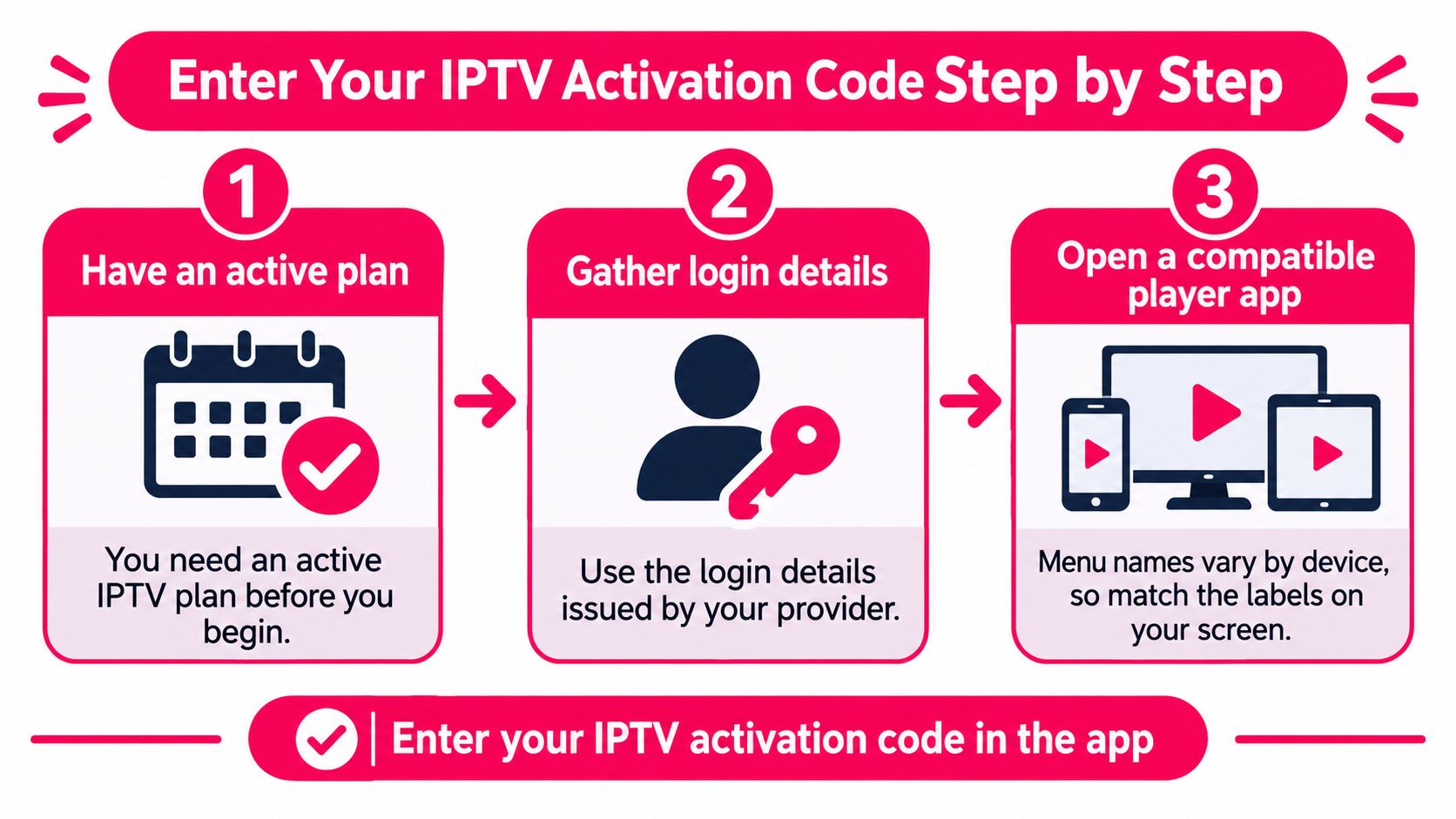
- Confirm the format you were given. Providers send an M3U playlist link, Xtream-style API details (username, password, server address) or a device portal address. Each one has its own entry screen, and using the wrong one produces a login failure that looks like a password problem.
- Install the player from the device's official store. Google Play on an Android box, the Amazon Appstore on a Firestick, the manufacturer's app store on a Smart TV. Sideloading an APK from a forum link is how people end up debugging malware instead of a playlist.
- Open the add-playlist or login screen in the app. Pick the option that matches your format. If you're unsure which you have, the Xtream Codes API login walkthrough for Canadian setups shows both entry styles side by side.
- Enter the details exactly as issued. Keep capitalisation, keep the port number, and delete the trailing space that comes along when you copy from an email. That stray space is a common cause of a rejected login, and it looks identical to a wrong password.
- Set the device date and time to automatic. Token timestamps and secure connections fail when the clock drifts, and a device that's been off for months usually has.
- Save and let the channel list load. A large playlist can take a minute or two on first import. Don't reload the moment it pauses.
- Play one HD channel end to end. Picture and sound on a single stream tells you authentication and playback both work. Only then add favourites, EPG or a second connection.
Where the playlist entry sits on each device
- Smart TV: open the manufacturer's app store or the media menu, install your player, then choose its Add Playlist or Login option. Most Canadian streamers reach for the TV first, and 78% of Canadian TV streamers used a smart TV to access streaming content in 2023, up from 75% in 2022, according to Roku Advertising's Canadian study.
- Firestick: install the player from the Appstore, open its settings, and use the playlist or login entry.
- Android TV box: install from the Google Play Store and follow the same entry point.
- Phone, tablet, Windows or Mac: open the player's settings and use the same playlist or login option. Handy for testing credentials away from the TV.
If the provider uses a device portal rather than a playlist, enter the portal address precisely as issued and skip any format choice that doesn't apply.
Here's the same sequence in motion, which helps if a screen label isn't matching what you expected.
Success looks unremarkable. The channel list loads without a prompt, one HD channel plays smoothly, and nothing asks you to re-enter anything.
Connection Benchmarks to Check Before You Activate
Check the connection before you spend an hour on credentials. A speed and latency test takes minutes, and a weak line is often the culprit behind a stream that refuses to play. Measure on the device you will watch on, then compare your results against this table.
| Check | Benchmark | What it means for activation |
|---|---|---|
| Single HD stream | Approximately 5-8 Mbps | Baseline for one device |
| 4K stream | 25 Mbps | Test on a connection comfortably above this figure |
| Two simultaneous HD streams | 15-20 Mbps stable downstream | Reserve headroom rather than sizing to the exact video rate |
| Idle latency | 35-42 ms or lower | Low enough for smooth streaming |
| Latency above 100 ms | Delays become noticeable | Interactive and streaming use will suffer |
Those streaming and latency figures come from Canadian broadband measurement work published by the CRTC, which also notes that latency above 100 ms becomes noticeable during streaming, and that a household running two HD streams should plan on 15-20 Mbps of stable capacity rather than sizing to the exact video rate.
Read the table against your own test results. Canadian capability is comfortable on paper: median download speed reached 92 Mbps in 2024 while median upload reached 26.6 Mbps, according to CIRA's Internet Performance Test data. Statistics Canada reports that 97.3% of households had access to 50/10 Mbps broadband in 2025. Plenty of connections clear the HD bar and still stumble on a 4K stream at 8 p.m. over congested Wi-Fi.
Treat these as engineering thresholds that cannot promise smooth playback on their own. Wi-Fi interference, packet loss, an overloaded access point and provider-side congestion all cause buffering on a line that tested well at noon.
The acceptance test
Play one stream for five uninterrupted minutes on each device you intend to use, then repeat the test during peak evening hours. Record speed, latency, packet loss, resolution changes and authentication errors separately. A failed login and a frozen picture look identical on the sofa, and they point at different fixes.
Change one variable at a time. Switching DNS, Wi-Fi band and app simultaneously tells you nothing about which change worked.
Practical rule: if the test passes on Ethernet and fails over Wi-Fi, the fix is your home network. The activation code is already doing its job.
If the wired test fails too, and your other online services drop at the same hour, the troubleshooting guidance on when to call your ISP is a sensible next step before you spend money on a different plan. For a household sizing up multiple screens, the IPTV internet speed requirements breakdown covers how to budget capacity per stream.
Diagnose Login, Freezing and Single-Device Errors
The channel list loads in two seconds. You open the game, it plays for a minute, then the picture freezes at 8 p.m. sharp while the app still insists you're logged in. Nothing about the credentials failed. The stream did, and that difference decides where the fix starts.
The CRTC's broadband measurement work groups failures like this into three families, and each one has a different owner. A rejected login is an account problem. A stream that loads and then stalls is a path problem between you and the server. A plan that plays on one screen only is a connection-limit problem. Treating them as one fault is how people spend an evening reinstalling a perfectly good app.
| Symptom | Likely cause | First check |
|---|---|---|
| Login rejected | Credentials, endpoint or entitlement problem | Re-enter details exactly as issued, matching case, and confirm the portal URL |
| Channels load but freeze | Throughput, latency variation, packet loss, Wi-Fi or server load | Note whether every channel stalls at once or only one, and whether it repeats at the same hour |
| Only one device works | Connection limit or session-management issue | Start a stream on the working device, then sign in on the second and watch which one drops |
| Authentication errors after correct entry | Device clock out of sync | Turn on automatic date and time, then retry |
Packet loss deserves more weight than raw speed here. The same Canadian testing recorded average FTTH packet loss of 0.04%, per the CRTC's broadband measurement report, and the word "average" is doing the hiding. A burst of loss during a congested evening empties a stream's buffer faster than it refills, which produces a freeze even on a line whose daily figures look clean.
The fix order that wastes the least time
- Check credentials and endpoint against the exact text your provider issued. Copy from the source, not from a screenshot of the source.
- Turn on automatic date and time, then retry. Clock drift invalidates secure connections and token timestamps, and a wrong clock produces errors that look exactly like a bad password. It's a thirty-second fix, so take it first.
- Re-run playback wired, then wireless on the same device, so you know which side of the router the problem lives on.
- Capture timestamps and screenshots before you reset the app. A provider can act on "error at 19:42, second device, screenshot attached" and can't act on "it doesn't work".
Some fixes take minutes: re-entering credentials, correcting the clock, deleting a stray space. Others take a day or more: a mesh node, a plan with more simultaneous connections, a wired run to the TV. Knowing which category you're in stops you reinstalling apps for a problem the router owns.
If a second screen kicks the first one off mid-programme, what you're seeing is usually a login conflict between devices rather than a faulty app.
Stay inside the lines while you troubleshoot. Use authorized services and official installation channels, and never bypass regional, copyright or device-security controls to make a stream appear. A workaround that breaks those rules isn't a fix.
Confirm Playback and Choose a Plan
Playback is the finish line: a subscription can authenticate perfectly and still fail on the second screen at eight in the evening.
Give every screen you plan to use a full evening of viewing before you commit to a longer term. Keep authentication errors in one column and buffering in another, because one is an account question and the other is a network question.
Then check your refund position alongside the price. The CRTC Internet Code sets a useful benchmark for Canadian internet services: customers can cancel at any time by notifying the provider, a provider must not charge for service that is not and cannot be supplied after cancellation, and prepaid fees are pro-rated over the days remaining in the final billing cycle. Those rules govern internet service and don't automatically bind every IPTV subscription, so hold the provider's written refund and cancellation policy up against them before you pay. Look for plans listed without contracts or automatic payments, priced in Canadian dollars with taxes included, and backed by a stated money-back window.
Account for hardware before you account for channels. Subscriptions support Smart TVs, Android TV boxes, Firestick devices, smartphones and tablets, Windows and Mac computers, and IPTV applications, so the device you already own usually decides your starting point. The trial option on the provider's website is the cheapest way to test all of it: 24 hours of HD channels with no credit card, which costs you an evening rather than a quarter.
Match the plan to the number of screens, not the headcount. One TV in a condo points to the 1 Month IPTV Subscription Canada plan, the shortest commitment on the list. A living room plus a bedroom points to the 3 Months IPTV Subscription Canada – 2 Devices, which covers two simultaneous screens for a quarter, and connection options scale up to five devices for busier households.
Decision rule: activation is complete when every screen you own has played a full evening without a re-login. Until then, you're still testing.
The IPTV subscription packages comparison for Canada lays term lengths, connection counts and cancellation wording side by side.
ROVE IPTV SUBSCRIPTION CANADA brings live Canadian and international channels, sports coverage and an on-demand library together on smart TVs, Firestick and Android TV boxes, phones, tablets and computers, with a free trial option so you can run the playback tests before you commit to a term. Test every screen in the house at peak hours, then choose the plan that matches how many will be watching at once. Visit ROVE IPTV SUBSCRIPTION CANADA to see the current plans, including a limited-time 30% promotional discount, and start your activation.

No Responses